InterpretBank — Three Core Components
InterpretBank is a suite of applications that includes:
- the Desktop, the main application for managing glossaries and preparing assignments on Windows or macOS.
- the WebApp, a companion application for accessing uploaded glossaries from a browser or mobile device.
- the InterpretBank ASR, also known as Boothmate, for real-time speech recognition support while you interpret. It is available as ASR Cloud in the browser and as ASR Offline as a separate local app.
🖥 InterpretBank Desktop
The Central Hub
• Terminology management
• Preparation & research tools
• Assignment workflow
• Training with natural sounding speeches
• Vocabulary learning
📱 InterpretBank Web App
Mobile Access
• Access glossaries anywhere
• Mobile access to memorization
• Quick reference during assignments
• Manual synchronization with Desktop
• Share glossaries with colleagues
🎤 InterpretBank ASR
Real-Time Intelligence
• Real-time transcription
• Automatic terminology suggestions
• Designed for live interpreting
• Works alongside Desktop
All three components work together to support interpreters before, during, and after assignments.
Views in InterpretBank Desktop
InterpretBank Desktop is the central hub for most of your work. It is organized around a Dashboard and four main views. Each view supports a different moment in the interpreter's workflow: building glossaries, preparing with documents, learning terminology, and searching during assignments.
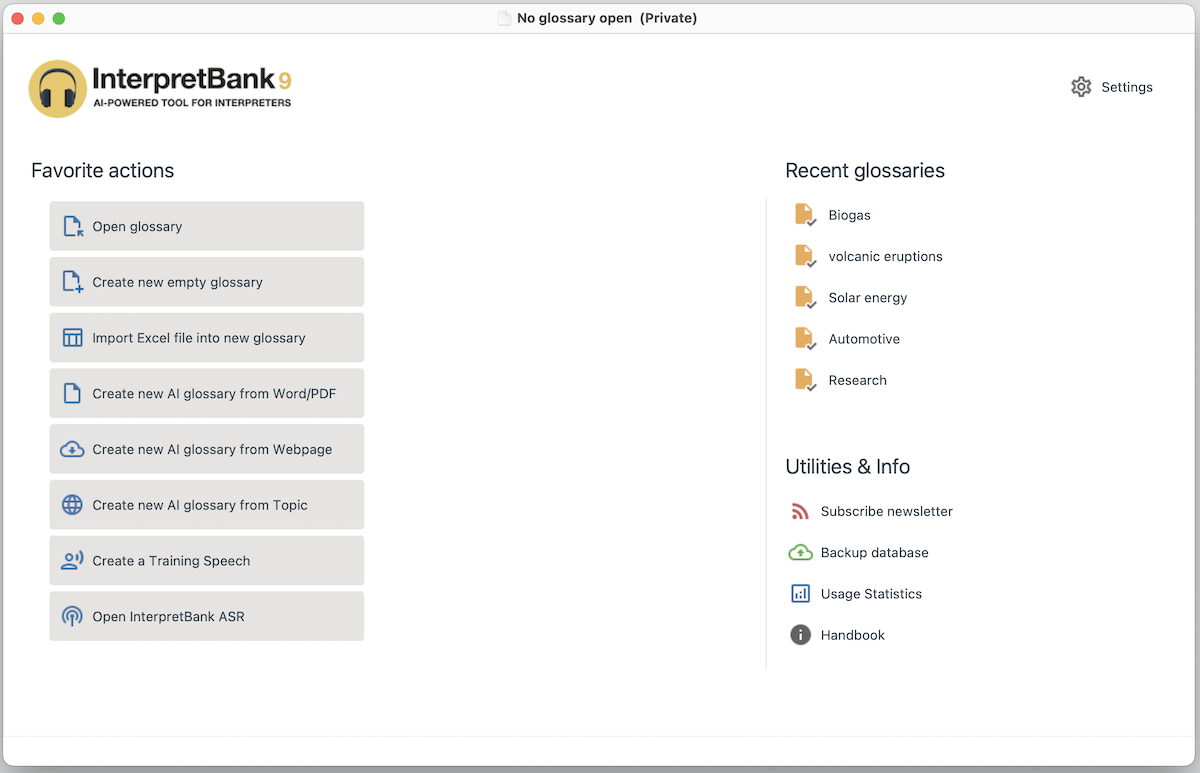
The menubar gives access to the main views:

 EDIT: Create, review, and maintain glossary entries.
 DOCUMENT: Use preparatory documents to identify and collect relevant terminology.
 MEMORIZATION: Learn and review the terms in your glossaries.
 LIVE SEARCH: Look up terms manually while interpreting.
How glossaries are organized
In the standard Desktop version, your glossaries are stored in a private database on your computer.
Each glossary has a Name. A glossary can also contain SubGlossaries and Tags. SubGlossaries help you divide one glossary into smaller parts. Tags help you group related glossaries across your database, for example by client, subject, or event.
Note
The Enterprise edition can connect to a central server database managed by your organization. This allows several users to work with a shared repository of glossaries. The server database can be hosted locally or in the cloud.
Creating glossaries
A glossary is the basic working unit in InterpretBank. You can create an empty glossary and fill it manually, or you can use documents and AI features to speed up preparation.
Note
AI features can help with translation suggestions, term extraction, and multilingual glossary creation from PDF or Word documents. For details, see the dedicated AI section.
Editing a glossary
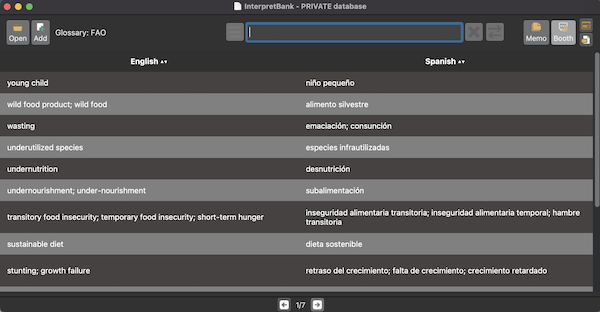
Glossary editing is centered on two areas: the ENTRY FIELDS and the TABLE. The entry fields are where terms and translations are written or changed. The table shows the glossary content and search results.
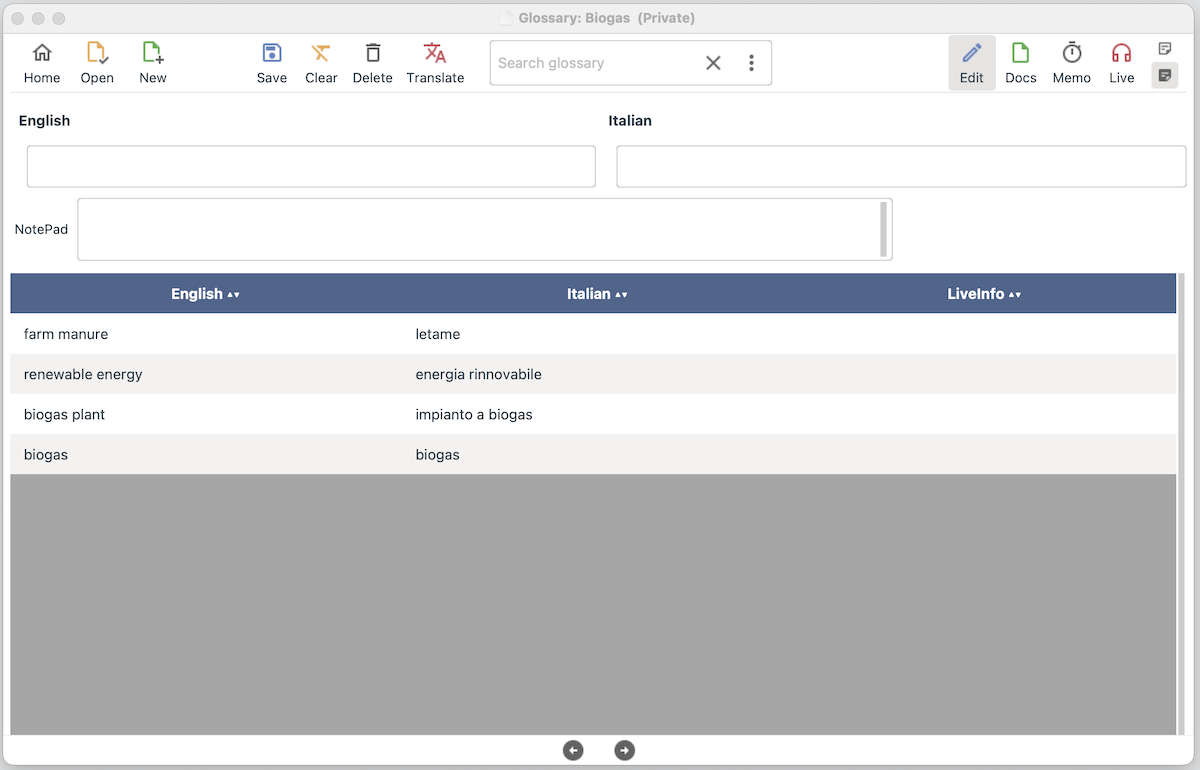
This separation keeps editing controlled: you write in the entry fields, while the table gives you an overview of the glossary.
Searching glossaries
Search is available in the EDIT and LIVE SEARCH views. EDIT search is useful while maintaining a glossary. LIVE SEARCH is designed for manual lookup while interpreting.
Depending on the setup, search can focus on one open glossary or expand progressively to a wider set of resources:
- the open glossary
- other selected glossaries
- the entire database
- automatic translation and reference terminology resources
Detailed search settings are explained in the Live Search section.
Installing InterpretBank Desktop
Download the installer from our website and double-click it.
Updating InterpretBank Desktop
InterpretBank notifies you when a major update is available. To check for minor updates, open Help | Check for updates. Then follow the on-screen instructions.
Default location of your personal data
Your personal data, such as glossaries and documents, is saved in a folder called InterpretBank. This folder is created during installation.
- Windows: either C:/users/YOUR-USER-NAME/AppData/Local or ProgramData
- macOS: UserAccount/YOUR-USER-NAME/Library/Application Support
Default location of the log file
- Windows: C:/Users/Public
- macOS: /Users/YOUR-USER-NAME/Library/Logs/
Moving your database to another computer
When you change computers, you can transfer your complete InterpretBank database, including all your glossaries, in either of the following ways. Install and activate InterpretBank on the new computer before transferring the database.
Move the database using backup and restore
This method does not require a WebApp account.
On the old computer:
- Open Database | Backup | Backup personal data.
- Save the backup file in a location that you can access from the new computer, such as an external drive or a cloud folder.
On the new computer:
- Copy the backup file to the new computer, if necessary.
- Open Database | Backup | Restore personal data.
- Select the backup file created on the old computer and confirm the restore.
Restoring replaces the database currently used on the new computer. InterpretBank automatically saves a copy of that database in the Personal folder. See Backup for more information.
Move the database using the WebApp
You can use the WebApp as an intermediate location if you have an active WebApp account.
On the old computer:
- Make sure the Desktop application is connected to your WebApp account.
- Open WebApp | Upload database to WebApp and wait for the upload to finish.
On the new computer:
- Connect the Desktop application to the same WebApp account.
- Open WebApp | Download database from WebApp and wait for the download to finish.
Uploading replaces the database stored in the WebApp account, and downloading replaces the database currently stored in the Desktop application on the new computer. Create a backup first if the destination contains data you want to keep. See Upload database and Download database for more information.
Synchronize your database between two computers
If your license allows you to use InterpretBank on two computers, you can keep the same database on both machines. There are three ways to do this:
- use a cloud folder for automatic synchronization
- move a backup file manually
- use the WebApp to upload and download the database manually
Automatic synchronization with a cloud folder
You can store your InterpretBank database in a synchronized folder, for example OneDrive or Dropbox. The cloud service, not InterpretBank, keeps the database updated on both computers.
Before changing the database location, create a database backup.
On your primary computer:
- Install InterpretBank and activate your activation key.
- Open Options | Settings | Private database.
- Click Move private database to cloud directory.
- Select a folder inside your cloud directory. The path should not contain special characters.
- InterpretBank moves your database to this folder.
On your secondary computer:
Install the same cloud service and make sure the synchronized database is visible on this computer.
- Install InterpretBank and activate your activation key.
- Open Options | Settings | Private database.
- Click Select private database in cloud directory.
- Select the database in your cloud folder.
- InterpretBank will use the synchronized database.
Note
Synchronization is managed by your cloud service provider. Make sure you understand how that service syncs files. By using a service such as Dropbox or OneDrive, you accept that provider's terms and conditions.
InterpretBank is not responsible for data loss caused by third-party synchronization services.
Manual transfer with a backup file
You can use the backup/restore feature to move the database from one computer to another. This does not synchronize automatically.
Manual transfer with the WebApp
You can upload the database to the WebApp from one computer and download it on the other computer. This does not synchronize automatically.
Proxy settings
InterpretBank usually detects proxy settings automatically. If InterpretBank cannot connect to the internet, configure the proxy manually:
- Open Options | Settings | Advanced.
- In the Address field, enter your proxy in this format: proxy.example.com:80.
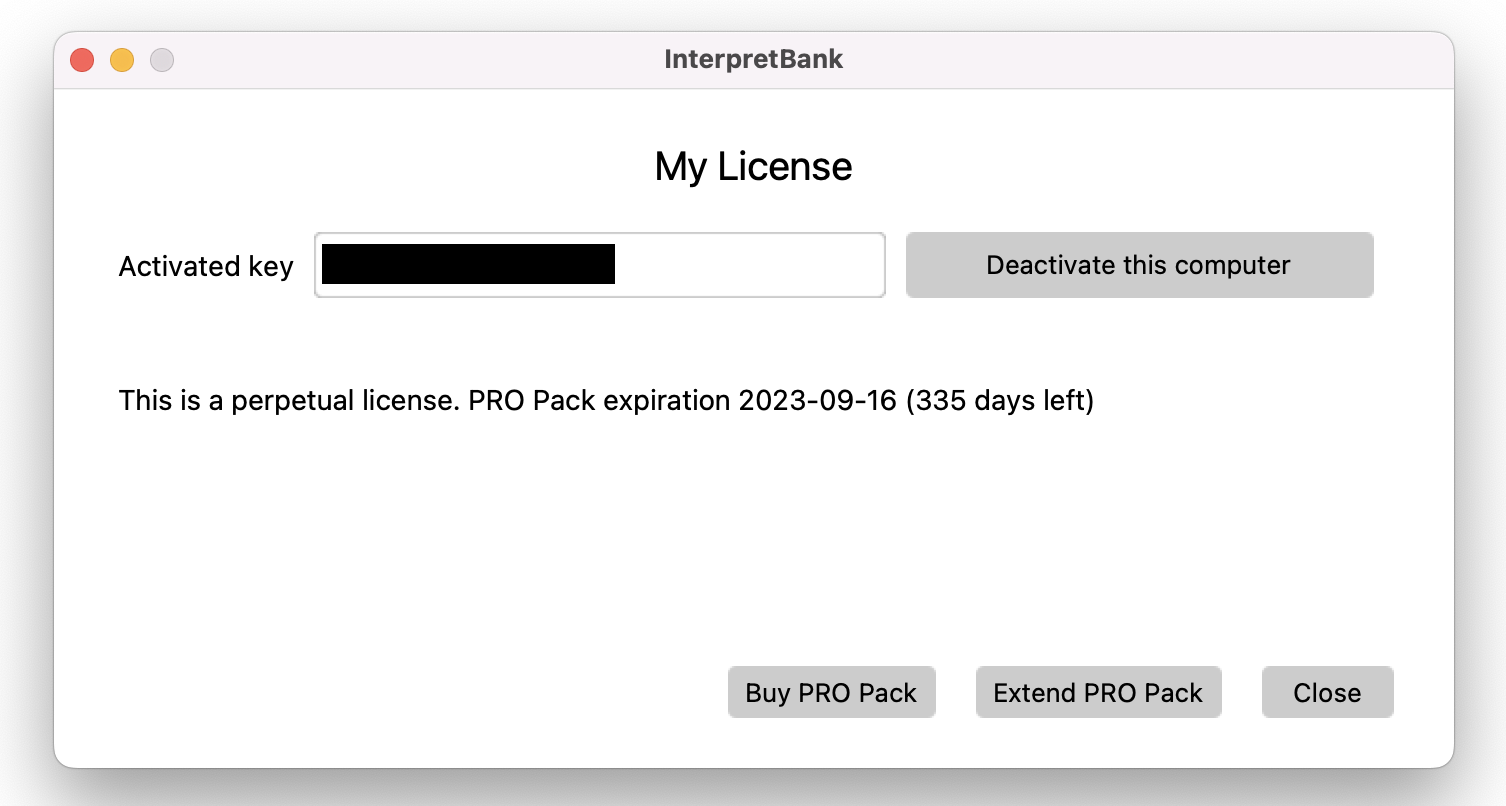
Activate InterpretBank
Open Help | License, enter your Activation Key in License Key, and click Activate. An internet connection is required.
Deactivate InterpretBank
Deactivate InterpretBank before moving it to a new computer or reinstalling it after reformatting. Open Help | License and deactivate the license. An internet connection is required.
Note
Support for license operations requires an active Subscription or, for Perpetual licenses, an active PRO Pack.
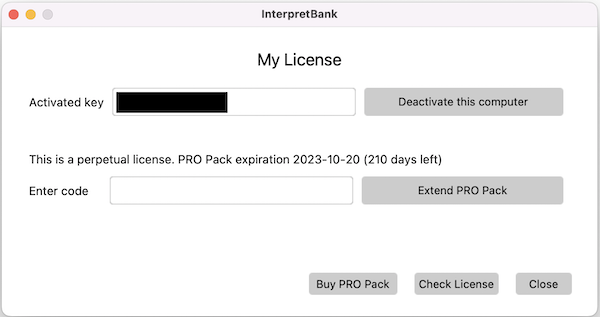
PRO Pack for Perpetual Licenses
The PRO Pack adds WebApp and AI features to a Perpetual License. It is included for the first 12 months after purchase.
To extend it, buy a PRO Pack code on our website, then redeem it in Help | License. Your Desktop license must be active.
Note
Subscriptions already include all PRO Pack features.
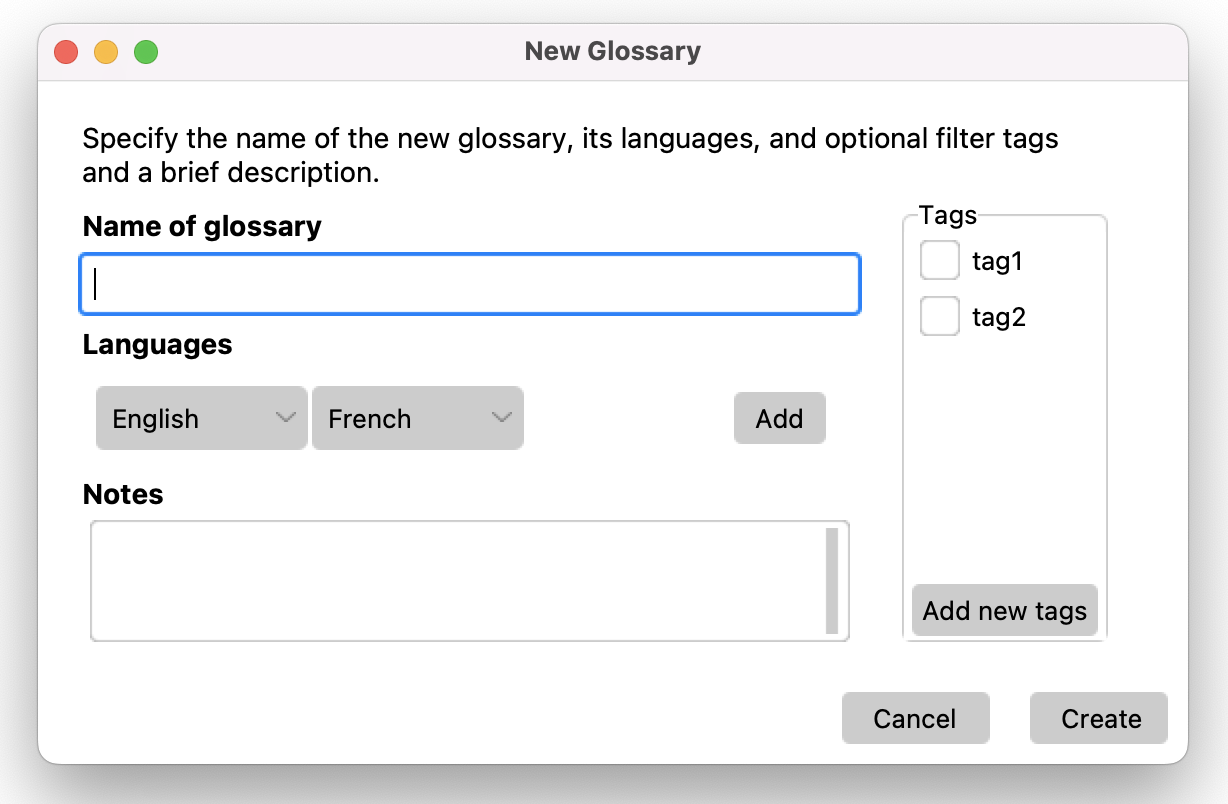
Create a new empty glossary
To create a new empty glossary:
- Select menu Glossary | Create new glossary or click on the icon
 in the Menubar.
- Enter the name of the new glossary.
- Set the languages of the glossary (you can add other languages at any time).
- Add an optional description of the glossary in Notes, for example some notes about the event, organizer, etc.
- If desired, select a set of tags to categorize your glossary. The tags can be defined in menu Options | Settings | Tags.
- Click on Create.
Tags
Tags are defined at the database level in Options | Settings | Tags (one tag per line). Once defined, you can assign tags to a glossary when creating it. In the Live Search view, tags let you quickly open a group of related glossaries at once.
Create a subglossary in an existing glossary
To create a Subglossary inside an existing Glossary, proceed as follows:
- Open an existing glossary.
- Select menu Glossary | Create new subglossary.
- Follow the same instructions to create a Glossary.
Open a glossary
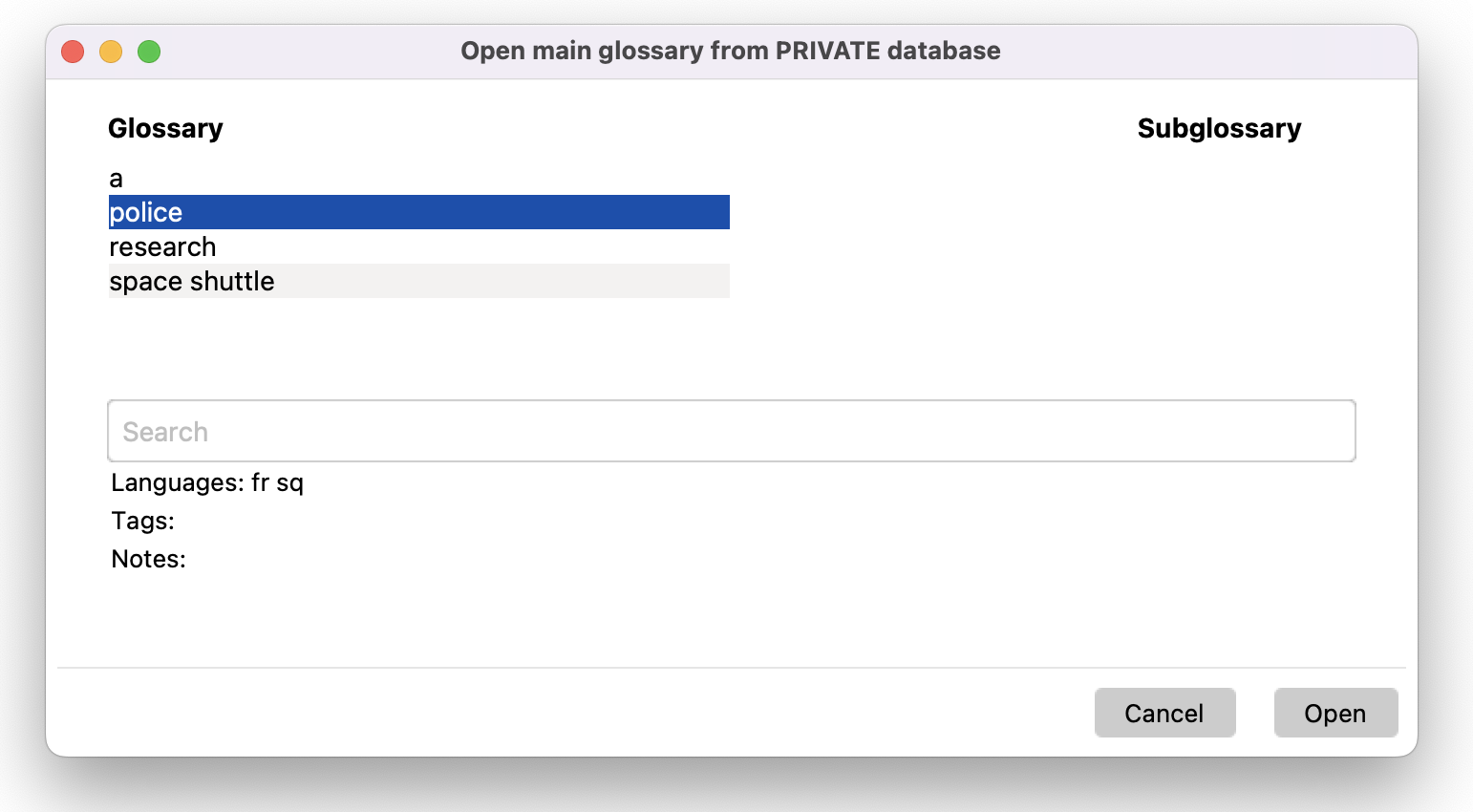
To open a glossary or a subglossary, select menu Glossary | Open main glossary or click on  . A dialog will be shown. On the left you can select the glossary, on the right the subglossaries contained in the selected glossary (if available). Make your selection and click on Open.
Use the search field to search in the Glossary list. You can move up and down the list using the keyboard arrows. When a glossary or a subglossary is highlighted, the languages available in that glossary/subglossary will be shown in the lower part of the dialog. The same applies for the Tags you have associated to the glossary.
Note
If your glossary contains subglossaries and you do not specify a subglossary to be opened, ALL subglossaries will be opened
Rename a glossary/subglossary
Open the glossary/subglossary you want to rename, select menu Glossary | Settings of open glossary or Glossary | Settings of open subglossary and change the glossary name. Click on Create.
Delete a glossary/subglossary
Open the glossary/subglossary you want to delete, click on menu Glossary | Delete glossary or Glossary | Delete subglossary and confirm the message.
Note
If you delete a glossary, all contained subglossaries will be automatically deleted!
Merge two glossaries
Merging two glossaries in InterpretBank allows you to consolidate all terms from one glossary into another existing glossary. This process can be accomplished with the following steps:
- Open the glossary that you wish to merge (referred to as the first glossary).
- Click on the menu option Glossary | Merge open glossary with another one.
- A dialog window will appear, presenting a list of available glossaries. Select the target glossary (second glossary) into which you want to move the terms from the first glossary.
- Confirm the merge, and all terms from the first glossary will be transferred into the second glossary, preserving their original format and relationships.
Delete duplicates from a glossary
To delete duplicates inside a glossary, click on menu Glossary | Delete duplicates in open glossary. This function will automatically delete perfect duplicates from the selected glossary.
Adding a language to an existing glossary/subglossary or changing the glossary languages
To add a new language to an existing glossary, open the desired glossary and click on menu Glossary | Settings of open glossary. In the window you can add or hide the desired language(s).
Change order of columns in the table
You have the flexibility to change the order of columns in a glossary either permanently or temporarily.
Permanent Change: This alteration will change the definition of the glossary and apply every time you open it. Here's how you can do it:
- Open the glossary you wish to modify.
- Click on the menu option Glossary | Modify glossary settings.
- Using the drop-down menus, you can modify the order of the languages. Note that the first two columns must always be selected.
- Save your changes, and the new order will be applied whenever you reopen the glossary.
Temporary Change: This adjustment will only last for the current session. Here's how you can do it:
- Open the glossary where you want to change the column order.
- Right-click with the mouse on the column you want to move.
- Click on the desired command to move the selected column left or right.
- This change will remain in effect only until you reopen the glossary, after which it will revert to the previous setting.
Order your terms in the table
Normally, the terms of a glossary are displayed from newest term (top) to oldest one (bottom). You can change this in menu View | Order of results. If you wish to order the results alphabetically in one language, just click the language name in the table header.
Show/Hide information in the table
It is possible to change the amount of information shown in the table to fit user's needs. To do so, click on a record in the table, then click with the right button of the mouse in the table. A pop-up will appear. Here you can:
- Show/Hide the column LiveInfo: in this column you will find the content of the fields Info and NotePad. Note that in order to grant usability of the table, the information inserted here will be cut to a fix number of characters (default 500). You can change this value in menu Options | Settings | Interface.
- Show/Hide the column Glossary name: in this column you will find the source of the record. This can be the glossary name or the source of an automatic translation.
- Show the content of field Abb: activate this option to show your abbreviations in the table.
Write and modify terms
Terms and their translations are edited in the Term fields in the upper part of the window. In addition to the term and its translation, you can add additional information, like a Definition or an Abbreviation, in the extra fields below the Term and in the Notepad. You can show or hide these fields in menu View.
Use the following icons to manage your glossary records:
Search Terms in the Edit View
In the Edit view, you can swiftly search for a term within the currently open glossary or across the entire database. Simply follow these steps:
- Enter the term (or part of it) into the search field as shown in the picture below.
- Press the Enter key to initiate the search.

- By default, the search encompasses all languages and is limited to the opened glossary.
If you wish to expand the search to all your glossaries (entire database), click on the icon with three points and select the desired scope for the search.
For specific live term lookups, switch to the Live Search view by clicking this icon: . The Live Search view is designed with an intelligent search system, specially developed for interpreters, to facilitate efficient and accurate term retrieval.
Enter Extra Information
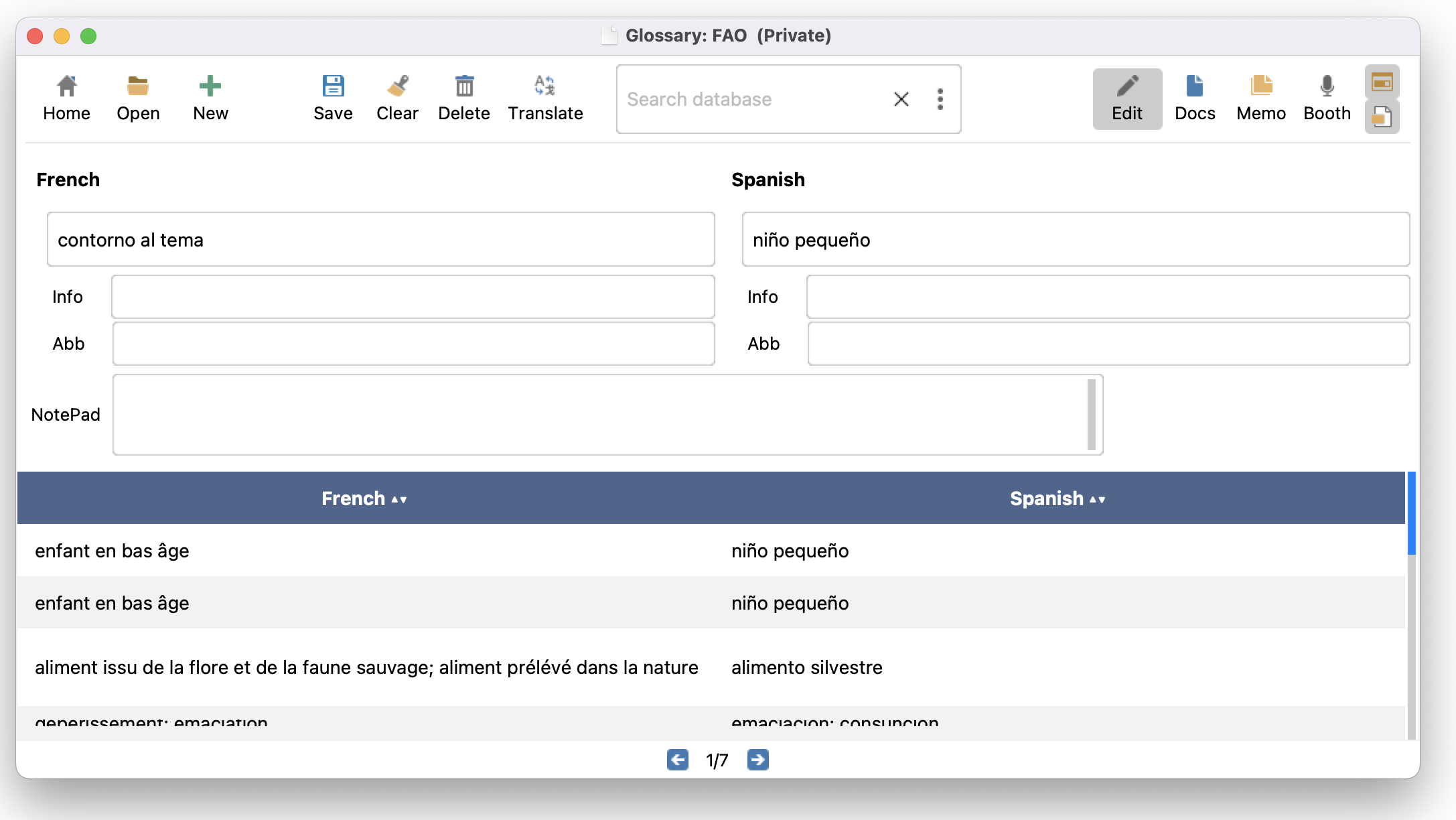
You can enrich your glossary by adding additional details like definitions, abbreviations, and notes. This can be done using three specific fields: Info, Abb, and Notepad. To display this information in the table, right-click on the table and select the desired information to show.
These fields can be shown or hidden using the two small icons located on the right side of the menubar.
Info: add here short info about the term in the specific language.
Notepad: add any type of information, without length restrictions. For table readability, the displayed text is automatically truncated to 500 characters by default. You can customize this length by adjusting the "Max length (char) of column LiveInfo" setting in the menu under Options | Settings | Interface.
For Abbreviations, it's recommended to insert them in the Abb field. This will ensure that the abbreviation appears in the table along with the corresponding term. To display abbreviations, simply right-click on the table and select Show content of field Abb in table.
Adding and deleting documents
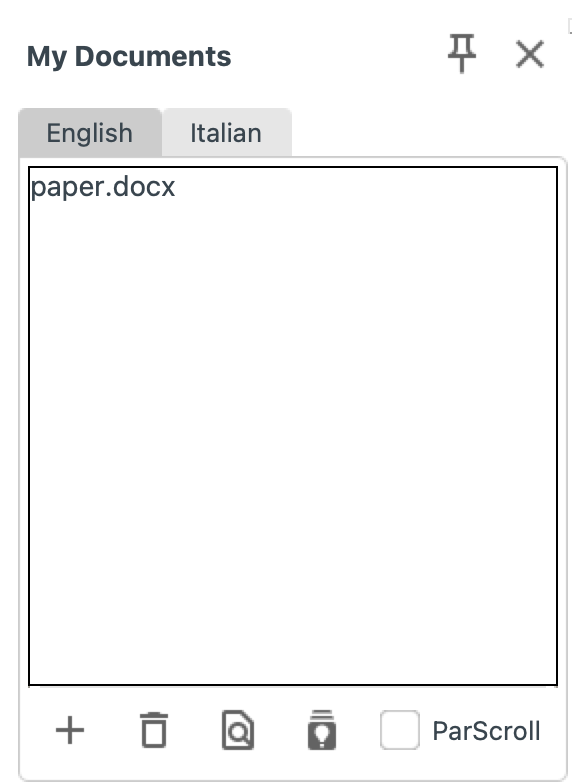
The Documents view in InterpretBank allows you to add and manage documents in various formats, such as .pdf, .doc, .docx, .odt, and .pptx. It can be accessed by clicking on the Documents icon in the menubar.
Here are two ways to add a document:
1. From the Documents view
- Select the tab corresponding to the language of your document.
- Click on the icon or simply Drag & Drop the document into the language box. The system will perform an automatic check and alert you if the document's language does not match the tab's language.
2. From menu Glossary
- Click on the menu option Glossary | Add preparatory documents to glossary.
- Select one or more files and click Open. The documents will be automatically imported into the appropriate language tabs, based on detected language.
Note
InterpretBank, similar to many other computer applications, has certain limitations in reading documents. Specifically, if you are using the Freelance version, it does not support Optical Character Recognition (OCR). This means that PDF files generated from scanned documents will not be readable. If you attempt to import such a document, it will appear empty, and an error message will be displayed, informing you of the issue. It may be necessary to use other tools or methods to convert these types of files into a readable format before importing them into InterpretBank.
Open a document to extract information
Documents in InterpretBank can be opened by double-clicking them from the document list. With the icon  you can choose whether to open the document inside InterpretBank or in its original application (such as the standard PDF Viewer and MS Office/PowerPoint).
Once opened, you can perform various actions with a document:
- Add a term: Highlight the term in the document; it is inserted into the entry field automatically. Enter or auto-generate (F1 / Cmd+1) the translation, then save.
- Save a term without editing: Highlight the term, right-click, and select Save in glossary.
- Examine term usage: Highlight the term, right-click, and choose Search in My documents to see all occurrences across your saved documents.
- Search in Google: Highlight the term, right-click, and choose Search in Google or Search images in Google.
- Add multiple terms at once: Click
 to enable multi-selection, highlight the desired terms, then click
  to import them. To deselect a term, right-click and choose Remove selection. See Manual Term Extraction for full instructions.
Manual Term Extraction from Parallel Documents
If you have two parallel documents (original language + translation), you can open both documents and identify the terminology in both languages. Here's how it works:
- Highlight a term pair in both languages.
- The terms are automatically inserted into the Entry fields.
- Save the term by clicking on the Save icon, or use the corresponding shortcut.
You can activate the ParScroll feature to enable parallel scrolling across all open documents. Please note that parallel scrolling functions only when documents are navigated using the vertical scroll bars.
Automatic Term Extraction and Glossary Generation from Documents
This function is available for English, French, Spanish, German, Italian, Dutch, Polish, Russian.
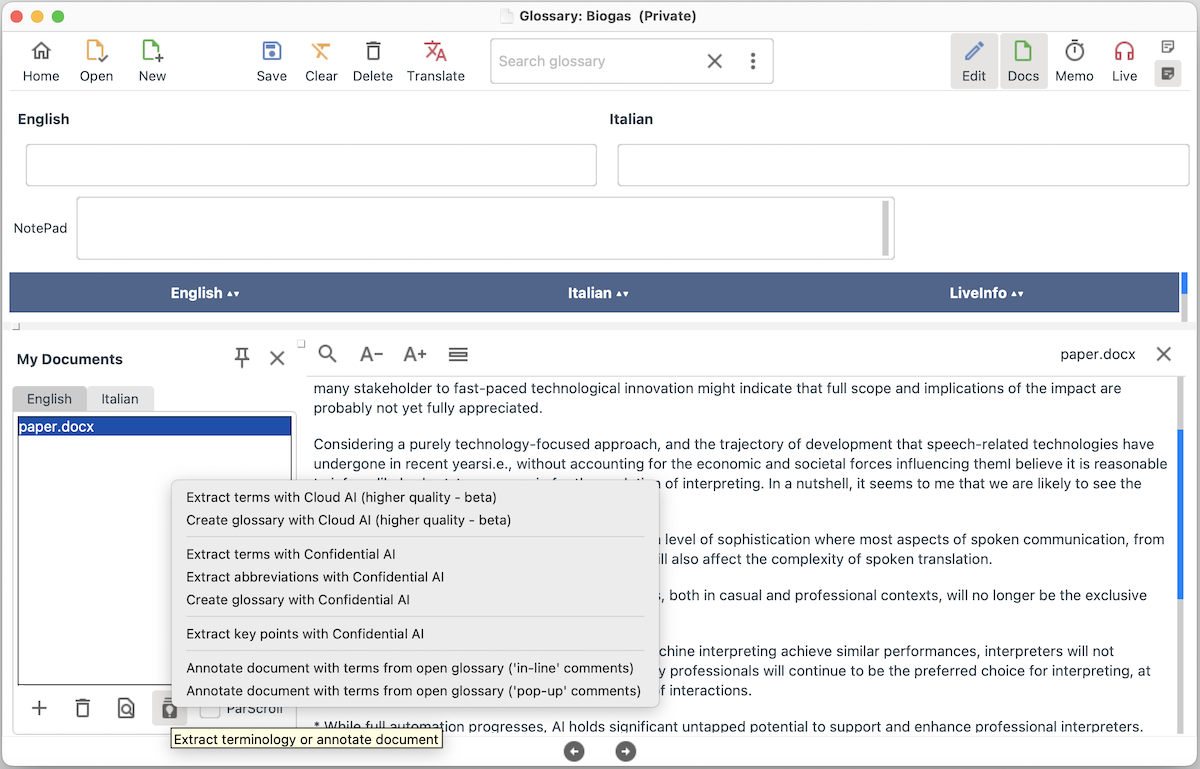
Select a document and click on the icon  . Then, choose your desired action:
- Extract terms with Cloud AI (higher quality): Extract the relevant terminology from the selected document using InterpretBank's Cloud AI. The document will be sent to InterpretBank's server for processing. The list of extracted terms will be presented in a table for the user to review.
- Create glossary with Cloud AI (higher quality): Extract the relevant terminology and translate into the target languages from the selected document using InterpretBank's Cloud AI. The document will be sent to InterpretBank's server for processing. The records will be automatically inserted into the glossary.
- Extract terms with Confidential AI: Extract the relevant terminology from the selected document using InterpretBank's local extraction algorithm. The document will NOT be sent to InterpretBank's server for processing. The quality is lower than with Cloud AI. The list of extracted terms will be presented in a table for the user to review.
- Extract abbreviations with Confidential AI: Extract the abbreviations from the selected document using InterpretBank's local extraction algorithm. The document will NOT be sent to InterpretBank's server for processing. The quality is lower than with Cloud AI. The list of extracted abbreviations will be presented in a table for the user to review.
- Create glossary with Confidential AI (higher quality): Extract the relevant terminology and translate into the target languages from the selected document using InterpretBank's local extraction algorithm. The document will NOT be sent to InterpretBank's server for processing. The records will be automatically inserted into the glossary.
- Extract key points with Confidential AI: extract a short list of points from your document to know the gist of the topic. The document will NOT be sent to InterpretBank's server for processing.
- Annotate document with terms from open glossary (In-line Comments): Open the document in the web browser and annotate it with the terminology in the glossary. The translation will be integrated into the document.
- Annotate document with terms from open glossary (Pop-up Comments): Open the document in the web browser and annotate it with the terminology in the glossary. The translations will appear in pop-ups. Hover with the mouse to see them.
Automatic download of EUR-lex legislation
This function has been designed primarily for interpreters working with the EU institutions or dealing with the legislative texts of the EU. It allows to automatically download legislation texts from theEUR-lex by inserting the CELIX number of the document. InterpretBank will download all language versions available for your language combination (opened glossary) and save them in your glossary. You can then process the texts using the methods described in section Documents. To download a set of texts from Eur-lex:
- Open your glossary or create a new one
- Open the Documents mode
- Go to menu AI Tools | Download EUR-lex document, insert the CELIX number and click on Download
Concordancer (Term in Context)
With this function, you can see how a word is used in your preparatory documents. You will get all occurrences of the word in the documents saved within the opened glossary. Access this function via the menu by selecting Glossary | Open Concordancer, or by highlighting a word in a term field, right-clicking the mouse, and choosing Search in My Documents from the popup menu.
In the concordancer window, you can enter a word, select the language, and start a search. Note that you need texts saved within the glossary to display results. If you want to search for exact matches, please enter the word within quotation marks ("").
How to create a training speech
It is simple to create a new speech for training. Simply open the feature in menu AI tools | Generate an AI speech and select the options available. The generation will take approx 15 to 20 minutes. Your standard web browser will be opened. You can play the speech using the player or download the speech on your computer.
Note
If you open this feature with a glossary opened, then some terms from your glossary will be automatically added to the speech!
Find Translations while Creating a Glossary
Use this feature When you are creating a new glossary manually. There are two methods to access this feature, each providing a unique interaction and resource availability:
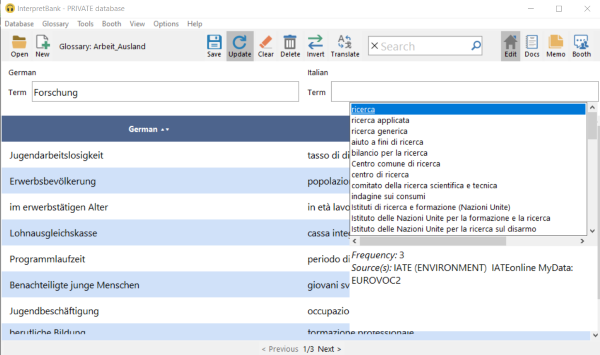
Translations are suggested directly within InterpretBank, allowing you to choose the best translation by double-clicking it. Here's how to use this feature:
- Enter a term in one language in the Term field of one language.
- Find a translation by:
- Pressing the function key F1 on Windows or Cmd+1 on macOS, or
- Clicking the icon
 , or
, or
- Right-clicking on a term field and selecting "Translate missing term."
A pop-up window will appear below the entry field that is missing the translation. Use the arrow keys to highlight a translation, review the information in the box below, and press Enter to confirm your choice. If no suitable translation is found, click in the empty entry field or press ESC to close the pop-up window without entering any translation.
Once all translations are inserted, save the entry using the save icon or the shortcut Ctrl+s (Windows)/Cmd+s (macOS).
The information box provides details such as:
- Score: Reflects the quality of the highlighted suggestion.
- Sources: Lists resources proposing this suggestion.
- Examples: Contains sentences with this suggestion from your preparatory documents (if available).
For glossaries with several untranslated terms, you can automatically translate all terms with menu AI-tools | Auto translate missing terms in open glossary. This operation is automatic and does not require user's validation.
Searching in alternative Web Resources
Translations can also be proposed in your default web browser by looking your favorite Web Resources. Enter or select a term missing a translation, right-click, and select Search translations/definitions in favorite Webpages, or use F2 on Windows or Cmd+2 on macOS. Results are displayed in your browser, and translations must be copied and pasted into your glossary. Configure this feature in the "Results shown in Web Browser" tab, and activate your favorite resources in Options | Settings | Translation resources (see Translation resources).
Create new AI glossary from Word/PDF
Automatically generate a multilingual glossary from a monolingual Word/PDF document.
How to generate the glossary:
- Click on menu AI Tools | Create new AI glossary from Word/PDF
- Give your glossary a name
- Select the desired glossary languages
- Select your document
- Click on Create.
Note
InterpretBank extracts terminology from the document and translates it into the target language(s). Supported source languages: English, French, Spanish, German, Italian, Portuguese, Dutch. Most target languages are supported.
Create new AI glossary from Webpage
InterpretBank can automatically generate a multilingual glossary from a monolingual website. This is useful to create a glossary from a corporate webpage. How to generate the glossary:
- Click on menu AI Tools | Create new AI glossary from Word/PDF.
- Give your glossary a name
- Select the desired glossary languages
- Input the URL of the webpage in the form www.domain.com
- Click on Create.
Note
InterpretBank crawls several pages of the given domain, extracts terminology, and translates it into the target language(s). Supported source languages: English, French, Spanish, German, Italian, Portuguese, Dutch. Most target languages are supported.
Create new AI glossary on a Topic
InterpretBank can automatically generate a multilingual glossary from any topic you describe. How to generate the glossary:
- Click on menu AI Tools | Create new AI glossary from Topic.
- Give your glossary a name
- Select the desired glossary languages
- Describe the topic your interested in, such as "nuclear energy" or "nails in the sense of body part". Your description should be very accurate.
- Click on Create.
Note
InterpretBank uses AI to generate a bilingual or multilingual glossary on the topic you describe. Most languages are supported. Bilingual glossaries tend to have higher quality than multilingual ones.
Extract key points from Document
InterpretBank can automatically extract some key points about a document to have a gist of its content:
- Click on menu AI Tools | Extract key points from Document.
- Select your document.
- Click on Create.
Note
This feature is performed entirely on your computer. No document is uploaded to the cloud for maximum privacy.
Speech Recognition (ASR)
InterpretBank ASR is the speech-recognition companion for interpreters. It provides live transcription and can surface terminology, names, and numbers while you work.
InterpretBank currently offers two ASR workflows:
- ASR Cloud: browser-based, fastest to start, and shareable. In Desktop, use AI Tools > Open InterpretBank ASR Cloud > With current glossary or Without any glossary.
- ASR Offline: local desktop application for on-device transcription. In Desktop, use AI Tools > Open InterpretBank ASR Offline.
In the WebApp, use Open ASR without glossary if you want transcription without a glossary, or Lookup with ASR if you want glossary support during the session.
Cloud sessions require Internet access and an active subscription. Offline sessions run locally after setup, but still require initial license validation and model downloads.
Refer to the dedicated manual here for supported languages, privacy details, microphone setup, and glossary integration guidance.
Note
For best results, test the audio source before the event. If you want the simplest path, start with ASR Cloud. If privacy or unstable Internet is the priority, use ASR Offline. For full setup instructions, use the dedicated ASR handbook.
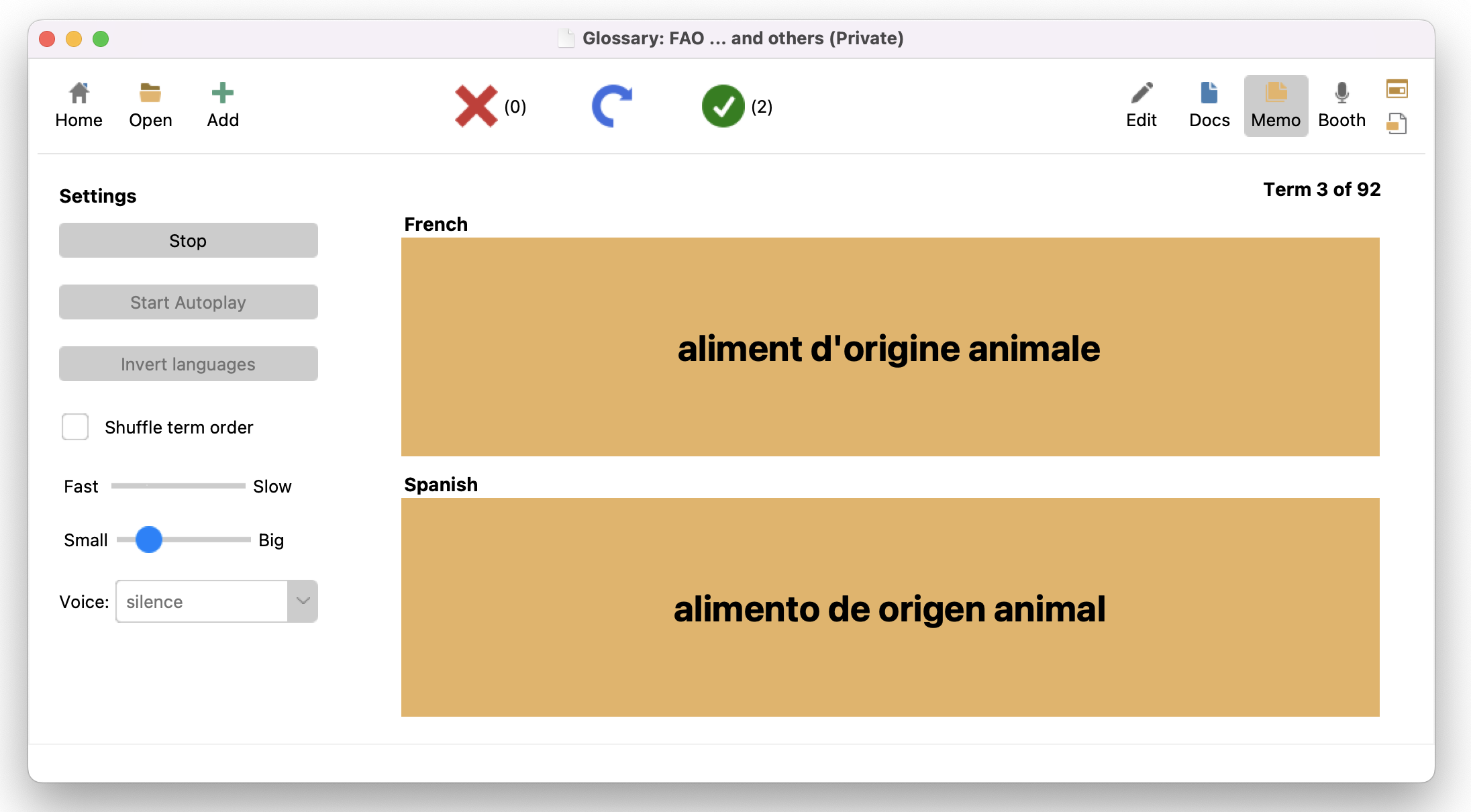
Memorizing a glossary on the computer
- Open a glossary (if a glossary has more languages than what you want to learn, change the table visualisation by right clicking the mouse on the table and hide the languages you do not need). Switch to the Memorisation view
- Start Manual (Start) or with Automatic advancing (Play). To set the speed of the automatic advancing, use the ruler.
- Activate Speak! if you want InterpretBank to read aloud the terms in the source language and, if you wish, in the target languages too (activate Only source if you want to be read aloud only terms in the source language).
- With the manual mode, advance the cards with the buttons on top. Click KNOWN if you knew the answer, or FORGOT if you did not. InterpretBank keeps track: next session it will show the FORGOT terms first, then the KNOWN ones.
- To swap the first two languages, click Invert.
- To shuffle the order of appearance, click Shuffle.
Note
The Speak! feature requires language packages installed on your system. See how to install voices for Windows 10 and macOS.
Memorizing a Glossary on a Mobile Device
To memorize a glossary on a mobile device, such as an iPad, please click here.
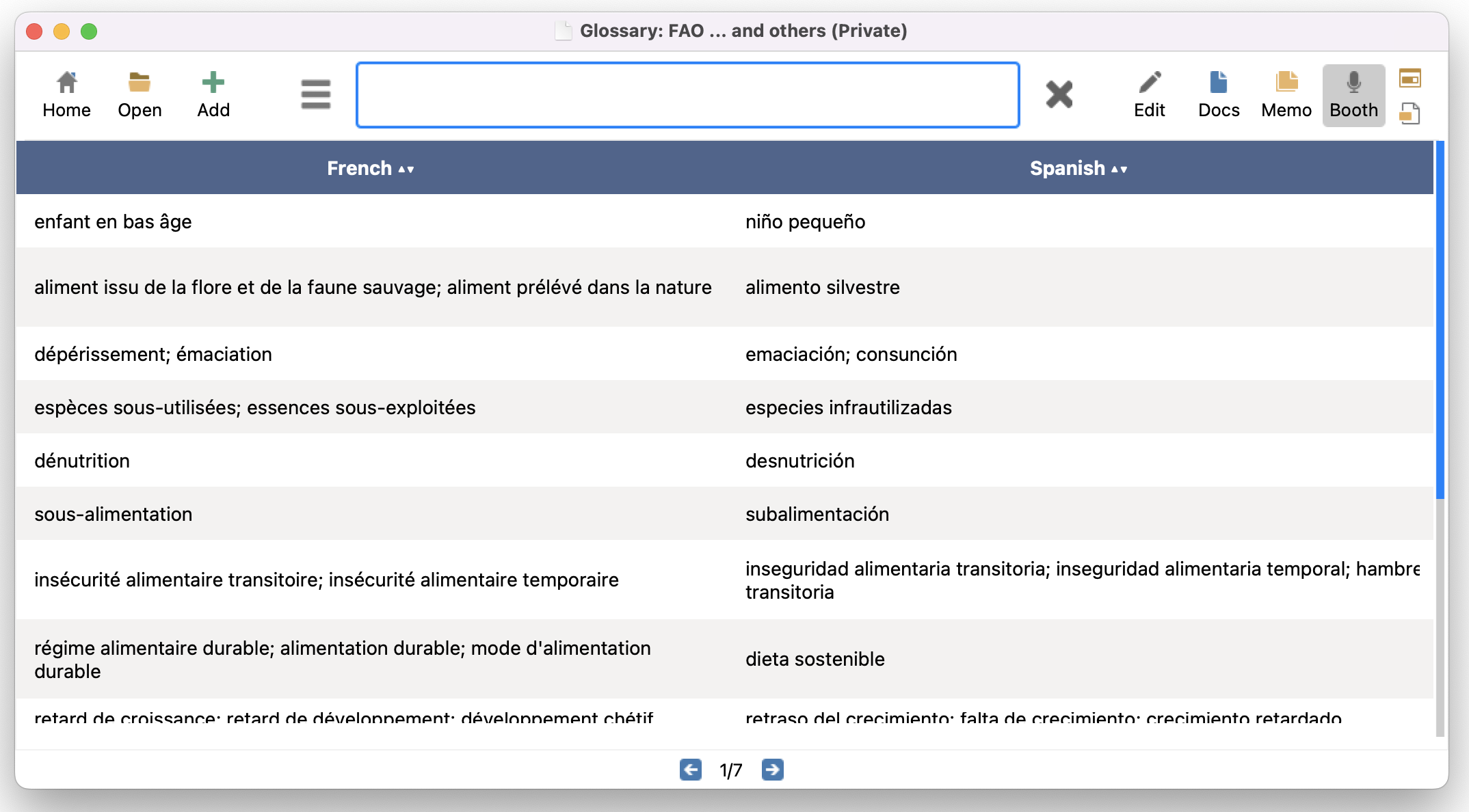
How Live Search works
The Live Search view is designed for fast term lookup while interpreting. The default settings work well in most cases. You can adjust behavior in Options | Settings | Live Search.
How your database is searched
In the Live Search view, InterpretBank can search in a customizable variety of resources. You can decide where the tool should search in Options | Settings | Live Search. With InterpretBank you can search:
- MAIN glossary (the glossary that you have opened in the InterpretBank's interface);
- MAIN glossary and in a set of EXTRA glossaries (MAIN glossary and EXTRA glossaries will form what we call the EVENT glossary);
- ENTIRE database (i.e. all your glossaries);
- EXTERNAL resources, like the integrated IATE database.
- AUTOMATIC resources, like online databases.
Open main glossary
To open a glossary, click on the icon  and select the desired glossary or subglossary. This will be your MAIN glossary.
Open more than one Glossary
In addition to the MAIN glossary, you can access other glossaries extending the search scope either by activating more glossaries using their specific names or by using tags associated with them.
Open other glossaries by name
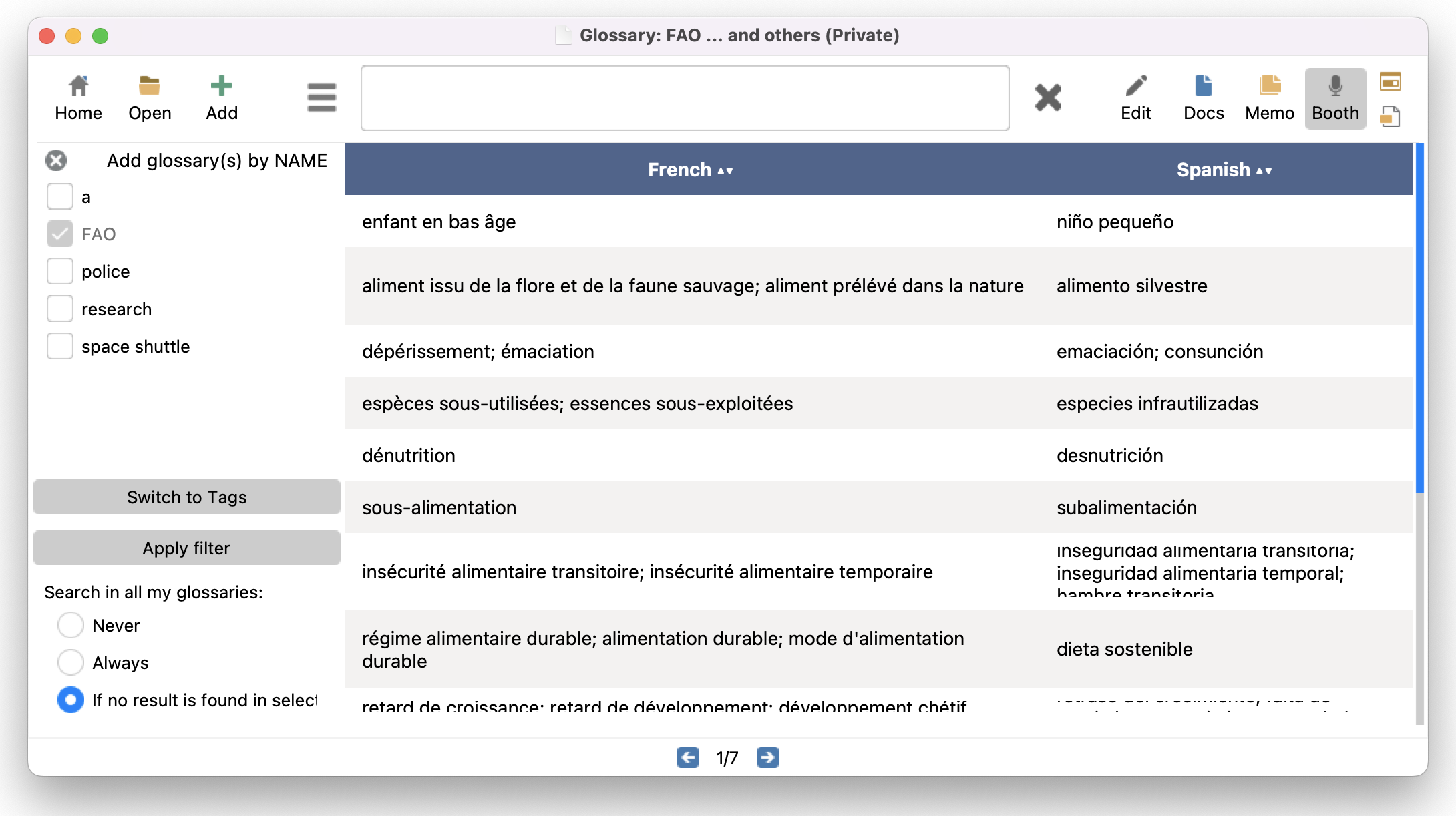
In the Live Search view click on the icon  , click on Add more glossaries by name or click on menu Live Search | Add more glossaries by name. A pane with all your glossaries will be displayed on the left part of the table. Select all the glossaries you want to activate in your current session.
Open other glossaries by tags
In the Live Search view click on the icon , click on Add more glossaries by tags or click on menu Live Search | Add more glossaries by tags. A pane with all your glossaries will be displayed on the left part of the table. Select all the glossaries you want to activate in your current session.
Note
Choose when InterpretBank should search your entire database. The default option, 'If no result is found in selected glossary(s)' (which includes the MAIN glossary and any other selected glossaries), is particularly useful when a search yields no results in your chosen glossaries. In that case, InterpretBank will automatically expand the search to your entire database. This search can be further extended to include external resources, such as your local copy of IATE, or online resources. You can configure this behavior by navigating to Options | Settings | Live Search in the menu.
Search Options
All options are in Options | Settings | Live Search.
INCREMENTAL SEARCH
- Search in all my glossaries: When enabled, the search expands to the entire database if no result is found in the selected glossary/glossaries.
- Local Translation Resources: Include offline resources (e.g., IATE) in search results.
- Web Translation Resources: Include online dictionaries and translation databases in search results.
INTELLIGENT SEARCH
- Case and accent insensitive: Ignore case and accents when matching — "cafe" also matches "Café".
- Show only terms that have a translation: Hide entries with empty translation fields.
- Correct typing/spelling errors: Return results even if the search term has minor typos.
- Search word matches: Match whole words only, not partial strings.
- Press Enter key to start search: Disable automatic search while typing; search only on Enter.
- Nr. of input characters to start search in entire database: Minimum number of characters typed before the full-database search activates.
Updating/Adding terms on-the-fly
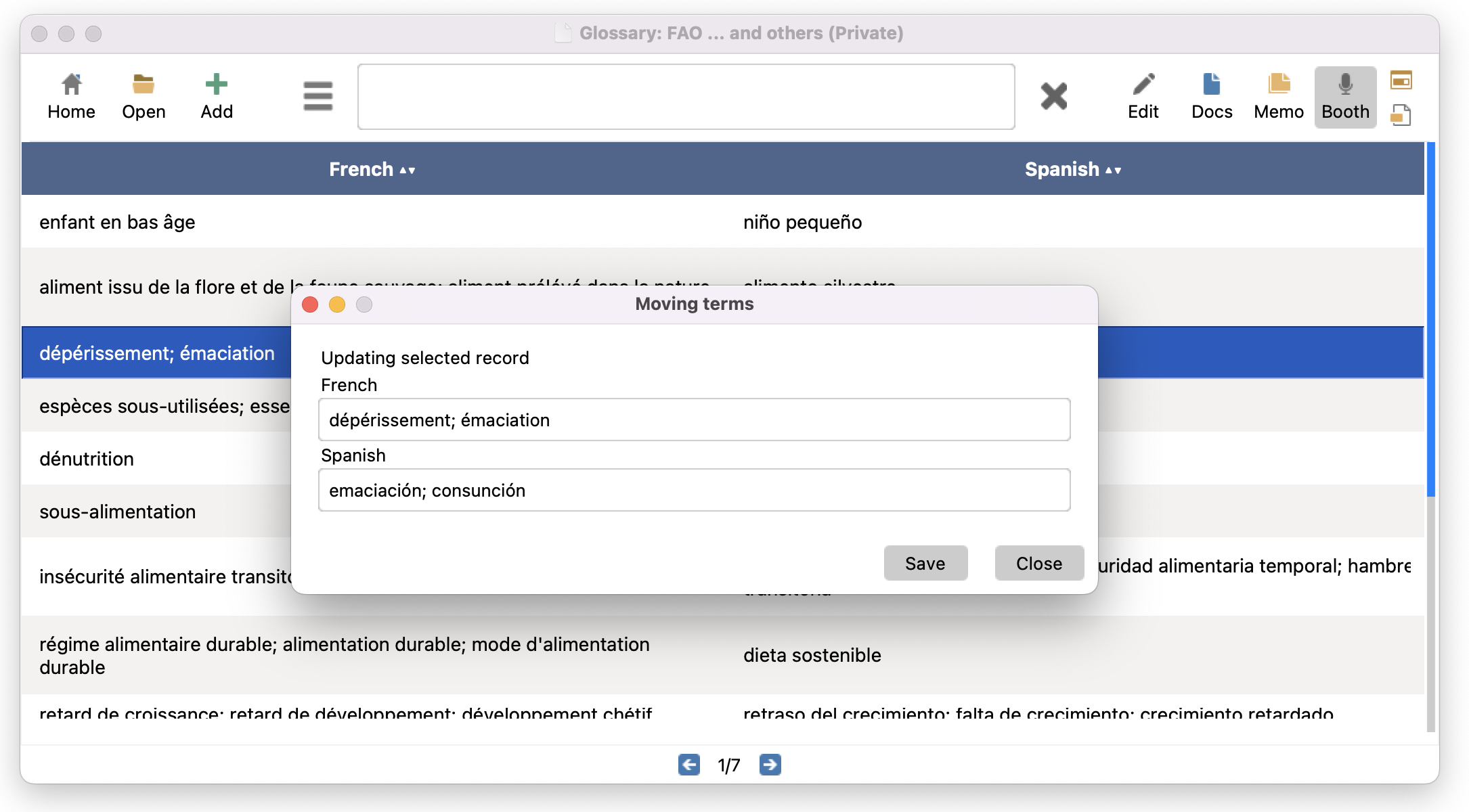
To update a term from the Live Search view, select a row in the table, right click of the mouse and choose Update selected term. A dialog window will be displayed. Update your term and click Apply.
To add a new term from the Live Search view, right click on the term on the table and choose Add term to main glossary. A dialog window will be displayed. Add your term and click Save.
Note
Note that the term will be added to the main glossary you have opened, i.e. if you have opened more than one glossary, it will be added to the first glossary you have selected from the Open Wizard.
Moving search bar
You can move the search bar on the top of the user interface. Go to menu Options | Settings | Live Search and activate the check box Set search bar on top. Restart InterpretBank to apply this setting.
Exchange a glossary between InterpretBank's users
Exchanging glossaries between users of InterpretBank is straightforward. To export a glossary (the format used is standard .tbx), open your glossary, then select menu Glossary | Export glossary | INTERPRETBANK (.tbx). Select the folder where you want to save the file and save it. Now you can forward the file to your colleague.
To import into InterpretBank a .tbx file received from a colleague, select menu Glossary | Import glossary into database | INTERPRETBANK (.tbx). InterpretBank will automatically import the glossary. If the .tbx file contains languages you do not manage in in InterpretBank, InterpretBank will skip them.
Export glossary
Open the glossary you want to export, then select menu Glossary | Export glossary | Excel. Select the folder where you want to save the file.
Import glossary
You can import glossaries stored in spreadsheets such as Microsoft Excel (.xls and .xlsx) and OpenOffice (.ods) as well as in text such as Microsoft Word (.doc and .docx) and Open Office (.odt).
To import a glossary, proceed as follows:
- In InterpretBank, open an existing glossary (the one in which you want to import your data into) or create a new empty glossary.
- Click on menu Database | Import glossary into database | EXCEL or WORD and select your file.
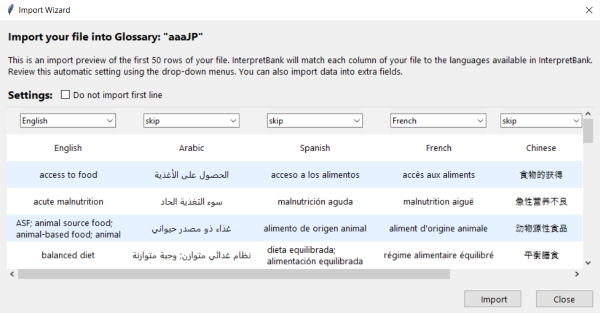
- In Import preview you will see your glossary as it will be imported in the database. InterpretBank will try to detect the languages of each column. Please check if InterpretBank has selected the right language for each drop-down menus. If not, correct the selection. Each drop-down menu should show the right language for the corresponding column. If a column should be skipped, please select "Skip".
- Select the option Exclude first row to exclude the first row of your glossary (useful if this row contains the language names). If this option is selected, the first row will not be imported.
- Insert the name of the glossary (and of the subglossary, if you wish).
- Press Import to import the file.
Note
Note for EXCEL: only the first sheet of your Excel file will be imported.
Note for WORD: please note that the glossary must be contained in a simple table; as Word files are not the ideal format to save structured data (such as a glossary), depending on the structure/formatting of your Word file, InterpretBank may have problems importing the glossary. The import works better with modern .docx files. We advice you to upgrade your .doc file into a .docx file using your MS Word program.
Note for OpenOffice: OpenOffice glossaries can not contain the character ";". Please substitute this character in your OpenOffice file before importing it.
Print
To print a glossary, open your glossary, then select Glossary | Print. The glossary will be displayed in your default Internet Browser. Use the print option of your Internet Browser to print the glossary.
The glossary will be displayed in the language and alphabetic order as shown in InterpretBank. To change the order of your terms, click on the table header of InterpretBank; if you want to change the column order, change it in menu View|Change glossary visualization. When the glossary is visualized as you desire, use the procedure described above to open your glossary in your Internet Browser and print it.
Backup
To backup the database, select Database | Backup | Backup personal data. Choose the folder where you want to save a backup copy of your database. Your database will be renamed with the current day and saved in this location.
To restore your database from a backup, select Database | Backup | Restore personal data. Specify the backup database you want to restore. This file will overwrite your current database. A copy of your current database will be automatically saved in your Personal folder.
Installation and database synchronization
You can open the WebApp in your browser at www.interpretbank.com/app. On supported devices, you can also install it as a web app. Open the browser menu and choose Add to Home Screen or Install app. This creates a dedicated icon on your device.
Database synchronization
Your Desktop database and your WebApp database are synchronized manually. No synchronization runs automatically in the background. This means you decide when to copy your data from the Desktop to the WebApp, or from the WebApp back to the Desktop.
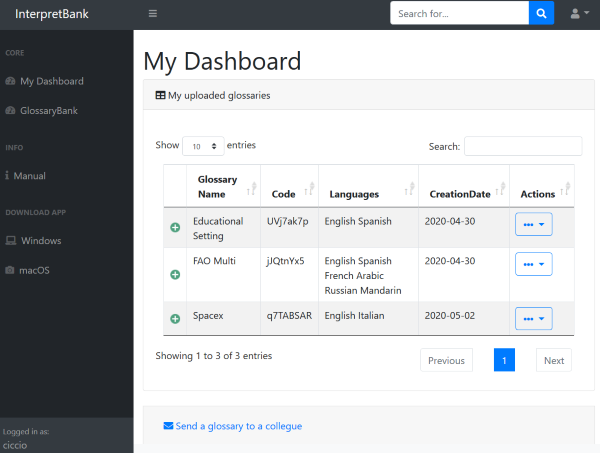
After logging in, you will see your Dashboard. The Dashboard lists your glossaries and lets you open each one for lookup, editing, memorization, sharing, or deletion.
PRO Pack for Cloud/Support/Update
To use the WebApp, you need an active PRO Pack for Cloud/Support/Update. To check how long your PRO Pack is valid, open Help | License in the Desktop application.
Create a WebApp Account
To use the WebApp, first create a WebApp account from the InterpretBank Desktop application:
- Open WebApp | Manage WebApp Account.
- Enter a username, a password, and a valid e-mail address.
- Click Create cloud account.
- Confirm the terms and conditions by clicking Accept Terms and Create Account.
- Upload your Desktop database to the WebApp. This is required because the WebApp uses your database to read your language settings and make your glossaries available online. See Upload your Desktop database to your WebApp account.
- Open www.interpretbank.com/app and log in with your username and password.
Forgot or change your password
Your WebApp credentials are saved in your Desktop installation. Your password is encrypted. If you have forgotten your WebApp password or want to change it, do this from the Desktop application:
- Open WebApp | Manage WebApp Account.
- Enter your username and e-mail address, if they are not already shown.
- Click Change password.
- Enter your new password.
- Confirm the message and click Save new password.
Upload your Desktop database to your WebApp account
To copy your Desktop database to your WebApp account, open WebApp | Upload database to WebApp. After the upload, all glossaries from your Desktop database are available in the WebApp Dashboard. The upload may take several minutes, depending on the size of your database and the speed of your internet connection. Your database should not contain more than 100,000 records.
Note
Uploading overwrites the database currently stored in your WebApp account. This operation cannot be undone.
Download your WebApp database to the Desktop
To copy your WebApp database back to the Desktop application, open WebApp | Download database from WebApp.
Note
Downloading overwrites the database currently stored in your Desktop application. This operation cannot be undone.
Dashboard
Use the Dashboard to open and manage the glossaries uploaded to your WebApp account.
For each glossary, the Dashboard shows the name, languages, upload date, and an Actions menu.
In the navigation bar on the left, the following shortcuts are available:
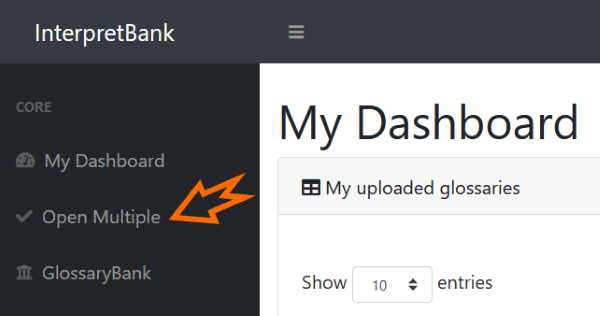
- Open multiple: Open several glossaries together.
- Stop sharing all: Stop sharing all glossaries you have shared in the past.
- ASR actions: Start an ASR session from the WebApp, with or without a glossary.
- Uploaded: See when the database was last uploaded from your Desktop.
Actions for individual glossaries
- Lookup: Open the glossary for lookup or editing.
- Memorize (classic): Open the glossary in the classic flashcard-style memorization view.
- Share: Send the glossary to a colleague by e-mail. You can decide whether the recipient can only look up the glossary or can also edit it.
- Stop sharing: Stop sharing this glossary with the people you previously shared it with.
- Delete: Delete the glossary from your WebApp account.
Look up multiple glossaries
To look up several glossaries at the same time, click Open multiple. In the popup, select the glossaries you want to open and click Open glossaries. You can then show or hide the languages you want to use.
Share glossaries with colleagues
You can share uploaded glossaries with colleagues. You can give them read-only access, or allow them to edit the glossary.
To share a glossary, open the Actions menu and click Share a glossary with a colleague. Enter the recipient's e-mail address and the glossary code, choose whether the recipient can edit the glossary, and click Send. The recipient will receive an e-mail with a link to open the glossary in the WebApp.
Search glossaries in your web browser
- Search is always accent-insensitive.
- Search usually starts automatically while you type. In some browsers, automatic search is disabled. In this case, click the magnifying glass icon to start the search.
- Press Enter to clear the search field.
- Use the menu on the left to show or hide language columns and to toggle the NotePad and Abbreviations columns.
Add a new version of IATE for offline search
InterpretBank is shipped with an offline version of IATE in five languages: English, French, German, Spanish and Italian as well with IATE online for all languages. The offline version is useful if you do not have an Internet connection. If you wish to use other languages in the offline version, you have to create a new InterpretBank's offline resource. The following procedure describes how you can import the official IATE database into InterpretBank:
STEP ONE - downloading the data:
- download the latest IATE from this link (it is a zip file +/- 124MB on 04/18, you do NOT need to unzip it.)
- download the tool to extract the languages you need from here (small file)
- the extraction tool requires JAVA. If you don’t have JAVA, please download and install it from here.
- open the extraction tool and select the downloaded data file (normally IATE_download.zip) by clicking on "Select IATE Export File" button and specify the output folder by clicking on "Set Extract Output Folder" button.
- Choose your languages (if you select more than one language, you can specify if the terms should be available in ALL or ANY of the selected languages);
- Click on Start and till the process is completed (it can take 10-30 minutes)
The whole procedure is described in the official IATE webpage here.
STEP TWO: Import this data in InterpretBank
- From menu Options, click on "Set automatic translation", then on the button "Add customized IATE".
- Select the file you have created in STEP ONE
- Wait until a window confirms that the process is finished (it can take several minutes, typically around 15 minutes), you can see the progress in the status bar (low part of the window). Do not interrupt this process.
If you can not perform this procedure yourself, you can buy the customisation from our shop. We will provide you with the database in your language combination ready to be used.
Add offline translation resources
You can add any personal bilingual dictionary to the automatic engine of InterpretBank. The dictionary must be available in text format (comma or tab separated values). The dictionary must have two or three columns (language one and two and, optional, a short info column). If you have a dictionary you want to import, proceed as follows:
- check that your file satisfy the parameter described above. The text file must be encoded in UTF-8-
- go to menu Options | Settings, tab Translation resources and click on Add customized dictionary
- in the dialog window, select the two languages of your dictionary (respecting the order left/right in your text file), select the column separator (comma or tab), give a short name to your resource, and select "Add third column to info field" if you want to add the third column of your file - if present - to the info field of each record
- click on Select text file and navigate to the file you want to import
- depending on the size of your dictionary and the speed of your computer, this process may take several minutes. Wait until the process is finished.
To activate this resource, go to menu Options | Settings, tab Translation resources and activate the new resource.
InterpretBank Connectivity Issues
To test InterpretBank's connection to its servers for tasks such as license activation or obtaining translation suggestions, go to Options | Settings | Interpret connection in the menu. Click on Check connection. The results should be indicated as OK (green), and you will also see the speed of the connection to the InterpretBank servers.
If InterpretBank cannot connect to the servers, first ensure your computer has internet access. You can do this by using your web browser to navigate the Internet.
The most common cause of connection issues is a proxy or firewall blocking access. This is common in secured IT environments such as institutional buildings and workplaces. In this case, contact your IT administrator for proxy details, which can be entered in Options | Settings | Interpret connection.
If your computer can access the Internet and is not behind a proxy or firewall, but InterpretBank still cannot connect to the servers, please restart your computer. This often resolves the issue.
Cancelling and Renewing a Subscription
If you have cancelled a subscription in the past and later subscribed to InterpretBank again, you will receive a new subscription key. You need to activate this new key, as the cancelled one is no longer valid. When you cancel a subscription and create a new one, the WebApp connected to the old subscription is deleted. You will need to activate the new subscription on the Desktop (menu Help | License), create a new WebApp account, and upload your database again.

 Save: Click this button to save a new record inside the open glossary, or to update a selected record in the table (the highlighted row). Alternatively, you can perform the same action by pressing the Enter key.
 Clear: Use this option to clear all entry fields without deleting the record itself from the database. The Clear icon is handy to deselect a previously selected record, preparing the interface for the entry of a brand new term.
 Delete: Select the record in the Table, and then press this icon to delete the term from your database. Please note that this action cannot be undone once you confirm in the subsequent window.
 to activate multiple selection, select all terms of interest, and click on
  Search the term in the preparatory documents to understand the context of use
 Mark the term as "not interesting to me". InterpretBank will learn from this choice in future extractions.
 . You can also use it on mobile device, for example on your iPhone, read