General info Last updated: 2026-03-21

InterpretBank ASR is a virtual assistant that supports you during interpreting by transcribing speech in real time. While you interpret, it displays the spoken text, allows you to translate the transcription on the fly, highlights numbers, and gives you instant access to terminology from your glossaries.

InterpretBank ASR is designed for high precision in real-time speech recognition and can be used both in simultaneous interpreting (as a Digital Boothmate) and in dialogic interpreting.

What ASR helps you with

  • Follow fast speech with live transcription.
  • Spot numbers, names, and terms more quickly.
  • Use glossary matches during live interpreting.
  • Share the transcript with colleagues in cloud sessions.

Two versions are available

  • InterpretBankASR Cloud: browser-based session hosted on the InterpretBank ASR server. Best for collaboration and quick access from any computer, with broader language availability and the highest transcription precision.
  • InterpretBankASR Offline: local desktop app using downloaded speech models on your machine. Best when you need local processing with no internet dependency and max. data confidentiality.
Use case Best choice
You need the fastest setup and want to work from a browser. InterpretBankASR Cloud
You want to share the live session with another interpreter. InterpretBankASR Cloud
You need local processing and do not want audio sent to a remote service. InterpretBankASR Offline
You expect unstable internet and want to keep running locally once set up. InterpretBankASR Offline

Main differences

  • Where transcription runs: InterpretBankASR Cloud = remote ASR engine, InterpretBankASR Offline = local ASR engine on your computer.
  • Sharing: InterpretBankASR Cloud supports share links for colleagues; InterpretBankASR Offline is local-only.
  • Internet dependency: InterpretBankASR Cloud needs internet during use. InterpretBankASR Offline can transcribe locally once configured, but still needs internet for license validation and model download/update checks. No audio data leaves the computer.
  • Glossary source: Both versions use glossaries from your main InterpretBank app. In InterpretBankASR Cloud, glossary data is uploaded for the session to a GDPR-compliant server. In InterpretBankASR Offline, glossary data is accessed directly on your computer.

Transcription engines, language availability, and privacy for InterpretBankASR Cloud

  • STANDARD transcription engine: unlimited use included in subscription (subject to availability). Not GDPR-compliant.
  • PREMIUM transcription engine: GDPR-compliant, usage-based with credits. Best recognition precision across all languages. To purchase credit for the cloud PREMIUM engine, click here.
  • Language support: speech recognition supports Albanian, Arabic, Armenian, Bulgarian, Catalan, Chinese, Croatian, Czech, Dutch, English, Finnish, French, German, Greek, Hungarian, Italian, Japanese, Korean, Norwegian, Polish, Portuguese, Russian, Slovenian, Spanish, Turkish, Vietnamese. Machine translation is available into virtually all major target languages supported by the session.

Transcription engines, language availability, and privacy for InterpretBankASR Offline

  • InterpretBankASR Offline downloaded transcription engine: unlimited use included in subscription.
  • Privacy: transcription runs locally on your computer.
  • Language support: depends on which offline language resources are installed in Settings > Model downloads. Only installed languages are available for transcription.

Note that lookup of glossary inflected forms (singular, plural, etc.) is currently optimized for English, French, and Spanish.

Quick Start (2 min)

  1. Install and open InterpretBank Desktop.
  2. Select AI Tools | Open InterpretBank ASR Cloud and choose With current glossary or Without any glossary. (WebApp: Open ASR without glossary / Lookup with ASR.)
  3. Allow your browser microphone access when prompted.
  4. Choose the preferred source language, then start speaking clearly and steadily.
  5. Use the live transcript to copy phrases, follow automated glossary matches, and review numbers/names quickly.

Before you start

  • For cloud sessions, use Google Chrome when possible.
  • Check browser microphone permissions before the event starts.
  • Test the audio source and session flow before going live.

InterpretBankASR Cloud - Guide

InterpretBankASR Cloud: overview

The cloud version runs in your browser. It is the easiest option when you want to start quickly, work from different computers, or share the live output with colleagues.

A cloud session is built around a live URL. The session owner works in a private live session, while invited viewers can join through a separate share link.

  • Choose InterpretBankASR Cloud if you want the highest recognition quality and the broadest language coverage.
  • Choose a session without glossary if you only need transcription and translation.
  • Choose a session with glossary if you also want live glossary matches, number highlighting, and share links for colleagues.

InterpretBankASR Cloud: create a session without glossary

Use this option when you want live transcription and machine translation without connecting any glossary.

  1. In InterpretBank Desktop, open the menu AI Tools | Open InterpretBank ASR Cloud | Without any glossary, or
  2. In the WebApp, open the glossary actions menu and click Open ASR without glossary.
  3. A webpage will open in your web browser. If Chrome is not your default browser, copy and paste the URL into Chrome.
  4. Allow microphone access when the browser asks for permission.
  5. Select the correct audio input and source language.
  6. Start the session. You will get live transcription and machine translation.

Best for: quick ad-hoc sessions, testing, and workflows where no glossary support is needed.

InterpretBankASR Cloud: create a session with a glossary

Use this option when you want live transcription, translation, and automatic glossary suggestions during the session. To do this, the glossary must be uploaded to the cloud for the session.

  1. Open a glossary in InterpretBank Desktop.
  2. In InterpretBank Desktop, select the menu AI Tools | Open InterpretBank ASR Cloud | With current glossary, or
  3. In the WebApp, open the actions menu for a glossary and select Lookup with ASR.
  4. A webpage will open in your web browser. If Chrome is not your default browser, copy and paste the URL into Chrome.
  5. Allow microphone access when prompted.
  6. Select the correct audio input, source language, and target language.
  7. Start the session. You will get live transcription, machine translation, automatic glossary lookup, and highlighting of numbers and names.

Best for: real interpreting assignments where you want terminology support and the option to share the live output.

InterpretBankASR Cloud: share a running session with other interpreters

This feature is available only for sessions created with a glossary.

You can share the live session output with colleagues without requiring them to install InterpretBank or connect directly to the event audio.

  1. Start a cloud session with a glossary.
  2. Click the Settings icon in the top bar.
  3. Copy the share URL shown in the pop-up window.
  4. Send the link to your colleague by email, chat, or any other channel.
  5. When they open the link, they can choose their preferred target language.

Important: the share link lets others view the session output, but the audio source still remains on the owner’s machine.

InterpretBankASR Offline - Guide

InterpretBankASR Offline: setup and run a session

The offline version is a local desktop app. It transcribes with speech-recognition resources installed on your machine and accesses glossary data directly on your computer.

This is the best choice when privacy is the main requirement or when you want to keep transcription local after the initial setup.

  1. Install and open InterpretBankASR Offline.
  2. Wait for license validation at startup. The Start button stays disabled until license and model checks pass.
  3. Open Settings > Model downloads and download at least one model for your source language (small/medium/big).
  4. In Settings > Model and Audio, choose the model and input audio device.
  5. Open Glossary selector, choose glossary and subglossary, then click Load glossary.
  6. Back in Live, set Source and Target language.
  7. Click Start to begin transcription. Use Clear to reset transcript and terminology.

Important: this version does not generate share links. It is intended for local usage on a single workstation.

Tip: complete the model download and audio test before the event. The first setup takes longer than a cloud session.

Connectivity

How to connect the audio of a physical console (on-site)

To use InterpretBank ASR on-site, you must send the interpreter feed from the booth console to your computer. In practice, you connect the console output to an audio input that InterpretBank ASR can read.

You will usually need:

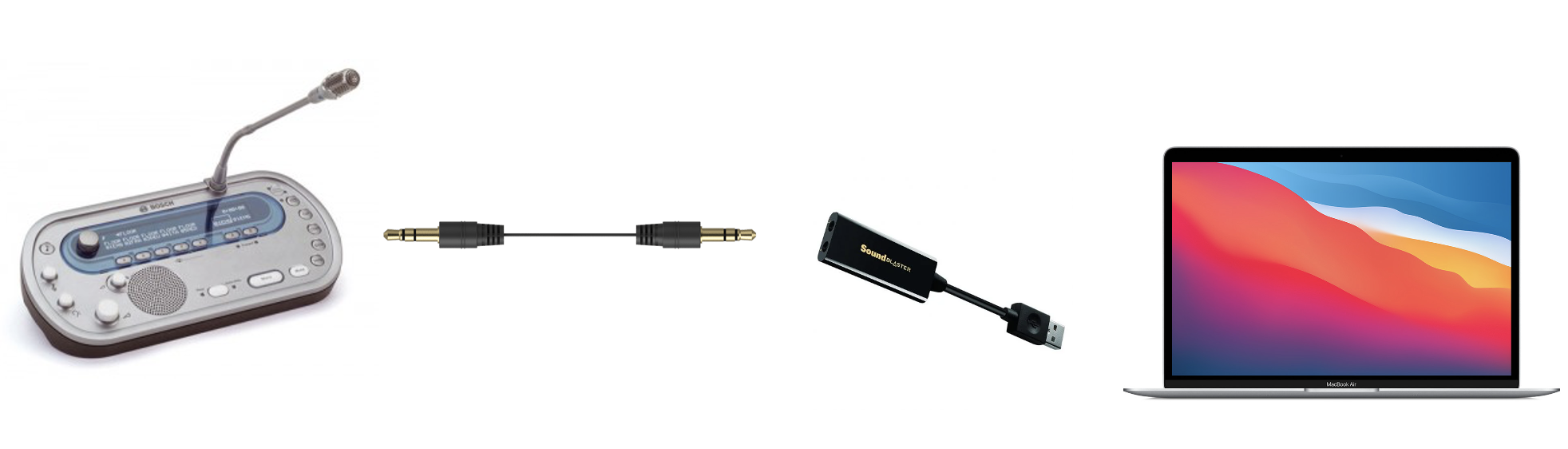
  • Male-to-male 3.5 mm audio AUX cable (example)
  • External USB sound card with audio input: a simple mic-in (example) or a sound card with a proper line-in (example)

Connect the line-out of the booth console to the audio-in of the external sound card using the AUX cable. Then connect the sound card to your computer via USB.

Recommendation: use a sound card with a proper line-in whenever possible. If you use a mic-in input, keep the input volume low because mic inputs are more sensitive and may distort the signal.

On-site audio connection diagram

Once the sound card is connected, start an ASR session. In many cases, InterpretBank ASR will detect the new input automatically and no additional configuration will be required.

When prompted by Chrome, allow access to audio input. If you need to change the source manually, open Settings > Audio in InterpretBank ASR and select the desired input from the dropdown menu.

Troubleshooting. If no transcription appears but the audio meter is moving in Settings > Audio, the problem is often related to Chrome microphone permissions rather than the cable setup.

To reset audio permissions in Chrome:

  • Open the ASR session page in Chrome.
  • Click the lock icon (or settings icon) to the left of the address bar.
  • Set Microphone to Ask or Allow.
  • Reload the page.
  • When prompted again, allow Chrome to access the audio input.

After reloading, verify that the correct audio input is selected in Settings > Audio and that the audio meter is active. Transcription should start within a few seconds.

How to connect a virtual audio source (Zoom, etc.) on Windows

This setup allows InterpretBank ASR to listen to audio already playing on your computer, such as Zoom, YouTube, or another remote platform.

Important: on a single-computer setup, this usually means you cannot use the same machine comfortably for both listening and speaking at the same time during RSI. See the limitations section below.

You can use the built-in Windows virtual input called Stereo Mix. If you do not see Stereo Mix among your devices, refer to this short video showing how to enable it.

  1. Open Windows sound settings by right-clicking the speaker icon in the taskbar and selecting Sound.
  2. In the Playback tab, make sure your speakers or headphones are selected.
  3. In the Recording tab, make sure Stereo Mix is enabled and selected.
  4. Open InterpretBank ASR and choose Stereo Mix as the input device if it is not already selected automatically.
Windows virtual audio connection diagram

Troubleshooting

If the above solution does not work, check whether Stereo Mix is disabled by default, whether another application has exclusive control of the device, or whether the wrong recording device is selected in ASR.

How to connect a virtual audio source (Zoom, etc.) on macOS

This setup allows InterpretBank ASR to listen to audio already playing on your Mac, such as Zoom, YouTube, or another remote platform.

Important: in a single-computer RSI setup, routing system audio this way usually prevents comfortable use of the same machine for speaking at the same time. See the limitations section below.

You can use the VB-Cable virtual sound card. Download it here. Once installed, VB-Cable will appear in your list of sound devices.

  1. Open macOS sound settings and select VB-Cable as both Output and Input.
  2. Your Mac audio will now be routed to VB-Cable. You will usually stop hearing audio through your speakers or headphones until you change the output again.
  3. Open InterpretBank ASR and select VB-Cable as the input device in the audio settings.
  4. If prompted, allow microphone or audio-input permissions.
macOS virtual audio connection diagram

Limitations

Note on Remote Simultaneous Interpretation (RSI)

For Remote Simultaneous Interpretation on platforms such as Zoom, the most reliable setup is to use two separate computers: one for the videoconferencing platform, where you listen and speak, and one for InterpretBank ASR. A single-computer setup is possible in some cases, but audio routing becomes significantly more complex and is generally not recommended for live assignments.

Frequently Asked Questions (FAQ)

  • Why is ASR not seeing my microphone? Make sure your system audio input is correctly selected and that your browser has microphone permission enabled. In Chrome, click the padlock icon and set Microphone to "Allow".
  • Why are glossary hits missing? Check that the session is using a glossary-enabled flow (With current glossary or Lookup with ASR) and confirm your source/target language pair matches the glossary language.
  • What should I do if a speaker is too fast? Ask for a short pause, or switch to InterpretBankASR Offline when available for more consistent local speed handling.
  • Can I share an ASR session? Yes. In cloud sessions with glossary, use the Settings share URL icon and send the link to teammates.
  • Do I need a paid plan? ASR functionality may require an active subscription. Check your account status on InterpretBank website under subscription/pricing.